How to Get Better Sound From the Headphones You Already Own
Getting decent sound from your headphones shouldn't require a new purchase. Yet a lot of people put up with muddy bass, harsh treble, or low volume because they assume that's just how their headphones sound

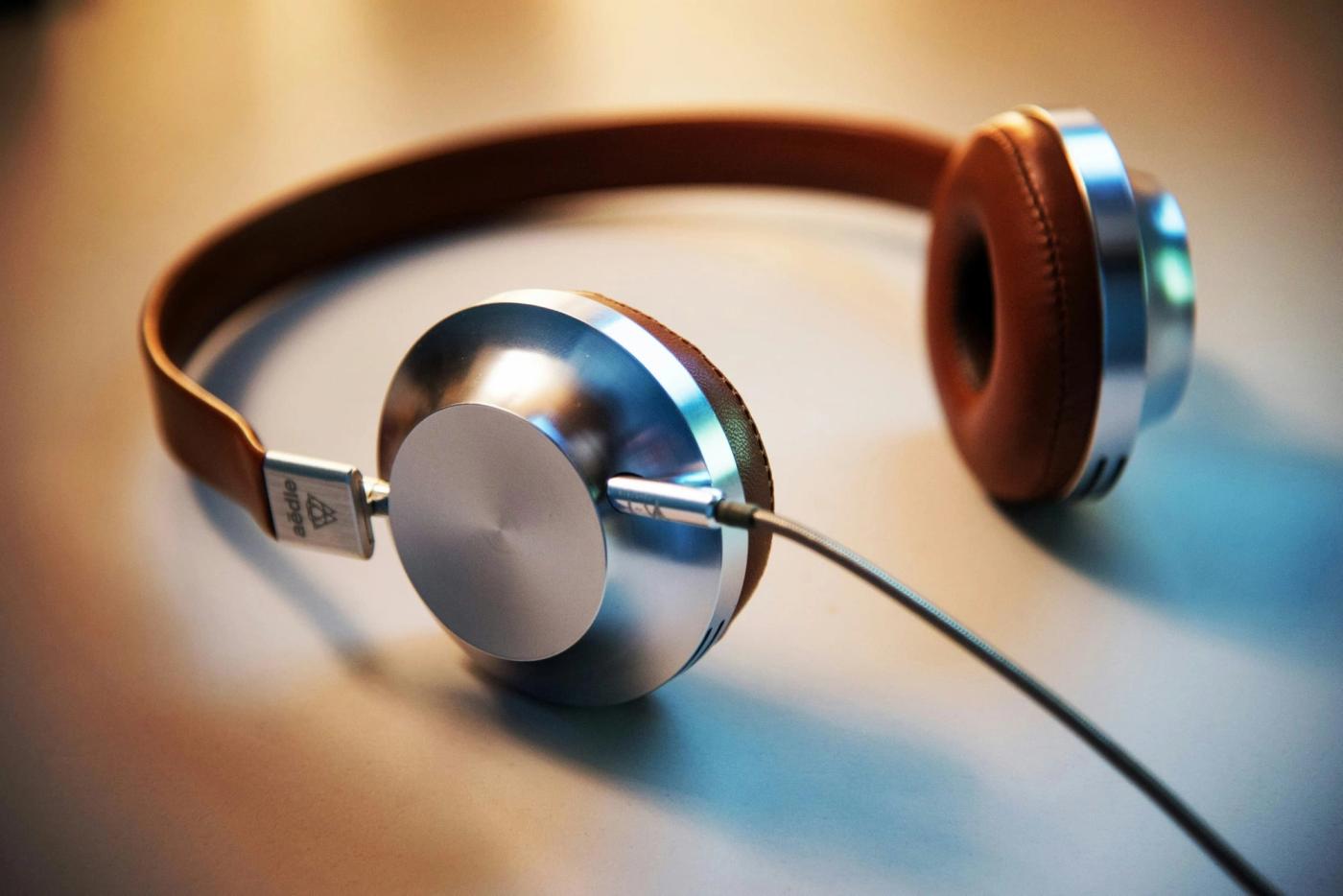
Getting decent sound from your headphones shouldn't require a new purchase. Yet a lot of people put up with muddy bass, harsh treble, or low volume because they assume that's just how their headphones sound. In many cases, the problem isn't the headphones. It's the way they're being used.
1. Check the Fit Before You Touch Any Settings
Start by putting your headphones on properly. If you're using over-ear headphones, make sure the ear cups fully cover your ears and create an even seal all the way around. If you're using earbuds, try the different tip sizes that came with them until you find one that sits snugly without feeling uncomfortable.
A poor fit changes the sound more than most people realize. Bass disappears when air leaks around the ear cups or ear tips. Vocals can sound thin, and music can lose its sense of depth. Spend five minutes getting the fit right before changing anything else.
2. Clean the Parts That Touch Your Ears
Take a close look at your ear pads or ear tips. Dust, earwax, skin oil, and pocket lint build up over time, even if your headphones look clean from a distance. Use a soft cloth to wipe ear pads, and remove ear tips so you can clean them according to the manufacturer's instructions.
Blocked openings can muffle sound and reduce clarity. Dirty ear tips can make one side sound quieter than the other. Make cleaning a monthly habit, especially if you use your headphones during workouts or commutes.
3. Turn Off Audio Effects You Didn't Choose
Open the sound settings on your phone, computer, or tablet and look for audio enhancements. Features like virtual surround sound, volume normalization, bass boost, or dialogue enhancement often come enabled by default. Turn them off temporarily and listen to a few familiar songs.
Many of these effects change the original audio in ways that sound impressive for a few minutes but become tiring over longer listening sessions. A clean signal gives you a better starting point. Once you've heard the difference, you can decide which effects actually improve your experience.
4. Use an Equalizer to Fix What Bothers You
Most phones, music apps, and computers include an equalizer, often called an EQ. Start with small adjustments instead of dramatic changes. If vocals sound buried, raise the midrange slightly. If cymbals or high notes feel sharp, reduce the highest frequencies a little.
Listen to the same song after each adjustment. Your ears need a clear comparison to judge whether a change helped. Small changes of one or two steps usually work better than extreme boosts.
Pro Tip: Save your original EQ settings before making changes. If you get lost after several adjustments, you can instantly return to a known starting point instead of guessing what changed.
5. Upgrade the Audio Quality You're Feeding Them
Check the quality settings in the apps you use most. Music and video services often reduce audio quality to save data or bandwidth. Open the settings menu and choose the highest quality option available for Wi-Fi listening.
Even excellent headphones can't recover details that were removed during heavy compression. Higher-quality audio files and streams usually deliver clearer vocals, cleaner instruments, and better separation between sounds. Test the difference with a song you know well.
6. Lower the Volume and Listen Again
Turn your volume down slightly, then replay a favorite track. Many people keep increasing the volume because they want more detail, but louder isn't always better. High volume can make music sound harsh and crowded.
A slightly lower volume often reveals details that get buried when everything is pushed too hard. You'll also reduce listening fatigue and make it easier to enjoy music for longer periods. Give yourself a few minutes to adjust before deciding.
7. Check Your Source Device
Plug your headphones into a different phone, laptop, tablet, or audio source if possible. Listen to the same song and compare the results. If the sound changes dramatically, your original device may be the weak link.
Old software settings, damaged audio ports, or poor-quality source files can affect what you hear. This simple test helps you identify whether the problem comes from the headphones or somewhere else in the chain. It's one of the fastest troubleshooting steps you can take.
Common Mistake to Avoid
The biggest mistake beginners make is changing everything at once. If you adjust the EQ, switch audio settings, increase volume, and test new music all at the same time, you won't know which change actually helped. Make one adjustment, listen for a few minutes, then decide whether to keep it. Slow changes produce better results and save a lot of frustration.
Now you're ready to hear what your headphones can actually do. Spend a few minutes applying these steps, and you may discover that the upgrade you wanted was already sitting on your desk.

James Roberts
Author at SofaBreak — writing on guides and everyday curiosities.